

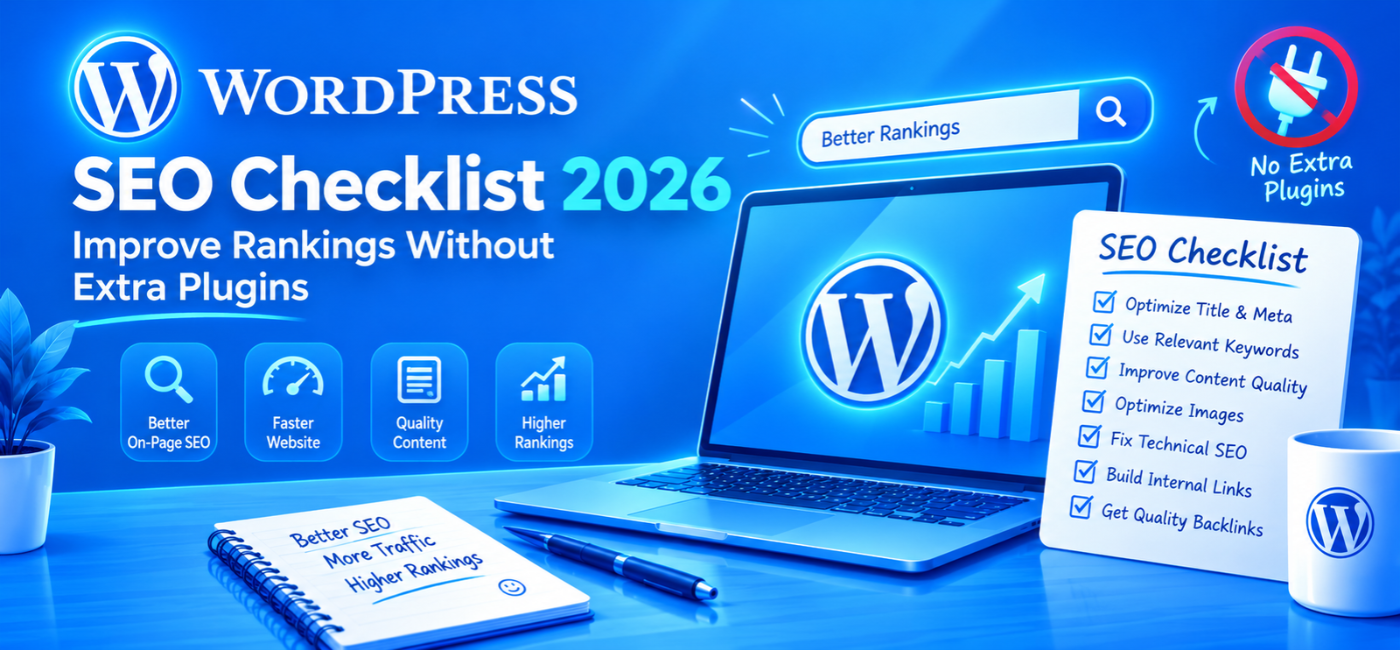
You do not need to install another plugin every time you want to improve your website’s search visibility.
Many useful improvements involve the tools you already have: WordPress settings, the block editor, your hosting dashboard, and Google Search Console. Clear content, descriptive titles, useful links, and accessible pages matter more than collecting optimization scores. Google’s guidance focuses on helping people and search engines understand your website—not on achieving a plugin’s recommended score.
This WordPress SEO checklist explains what you can improve yourself, what your existing setup may already handle, and when developer support makes sense.
The goal is not a completely plugin-free website. It is a reliable website without unnecessary software, duplicated features, or risky shortcuts.
Table of Contents
- What WordPress handles—and what it does not
- Check search visibility
- Confirm indexing in Search Console
- Review HTTPS and URL consistency
- Keep existing permalinks stable
- Verify your sitemap
- Match each page to a clear purpose
- Improve titles and headings
- Handle descriptions realistically
- Strengthen internal links
- Review categories and tags
- Optimize images
- Improve mobile usability and performance
- Check canonicals and broken URLs
- Add structured data carefully
- Maintain and measure your website
- FAQs and professional support
What WordPress Handles—and What It Does Not
WordPress provides useful foundations, but the exact output depends on your theme, hosting, configuration, and active extensions.
For example, core includes XML sitemap functionality and canonical output for singular content such as individual posts and pages. That does not mean every archive, filter, or custom template is automatically configured perfectly.developer.
| Task | Practical approach without another plugin |
| Edit page content and headings | Use the editor |
| Change a new page’s slug | Use its URL settings |
| Add contextual internal links | Use the editor |
| Describe content images | Use image alt-text controls |
| Check indexing | Use Search Console externally |
| Review sitemap availability | Inspect the active sitemap URL |
| Customize metadata at scale | Use existing functionality or developer implementation |
| Implement redirects | Use suitable hosting or server controls |
| Resolve complex canonical issues | Ask a developer to review output |
Do not remove an existing SEO plugin before checking whether it supplies metadata, redirects, structured data, or indexing rules. First document what depends on it.
1. Check the Search Visibility Setting
A simple setting can undermine an otherwise well-built website.
Go to:
Settings → Reading → Search engine visibility
For a public production website intended to appear in search, confirm that “Discourage search engines from indexing this site” is unchecked.
WordPress documents that enabling this setting generates a robots meta directive asking search engines not to index the site.
What to do next
After changing the setting:
- Clear relevant caches.
- Inspect an important live page.
- Check whether an unintended noindex directive remains.
- Review the URL in Search Console.
This setting is not a privacy control. Protect private staging environments with appropriate access restrictions rather than relying on a request to search engines.
2. Confirm That Google Can Index Important Pages
A page can be published in WordPress without appearing in Google.
Use Search Console’s URL Inspection tool for important service pages, product pages, and articles. Check whether Google has indexed the intended URL and can access its content.
Google recommends URL Inspection to understand how its systems see a page.
Focus on valuable pages
Start with:
- Your homepage.
- Main service pages.
- Important product or category pages.
- Articles supporting business goals.
- Genuine location pages.
Not every WordPress-generated URL needs to appear in search. Evaluate exclusions by purpose rather than trying to make the indexed-page count match every URL your website produces.
3. Review HTTPS and URL Consistency
Open your website through the main address variations, including HTTP and HTTPS.
Check that visitors consistently reach your intended secure version and that important internal links use the same preferred addresses.
Also look for missing images, insecure resources, certificate warnings, and unexpected redirects.
Avoid casual configuration changes
Do not change the WordPress Address or Site Address fields simply to experiment. Incorrect values can disrupt access.
If your website needs a domain or protocol change, treat it as a controlled technical task with backups, testing, and appropriate redirects.
4. Keep Existing Permalinks Stable
Readable URLs help visitors understand the destination. Google recommends descriptive URLs, but also cautions against unnecessarily reorganizing an existing website.
For new pages, choose a concise slug that describes the subject.
For example:
/payroll-outsourcing/
is easier to understand than:
/page-final-version-3/
Do not change working URLs for cosmetic reasons
An established date-based structure is not automatically an SEO problem.
Before changing a live permalink:
- Identify internal and external links.
- Choose the final destination.
- Arrange an appropriate permanent redirect.
- Update internal references.
- Test the result.
Changing the global permalink setting on a mature website is a migration decision—not a quick optimization trick.
5. Verify Your Active XML Sitemap
WordPress includes core XML sitemap functionality, commonly available at:
https://example.com/wp-sitemap.xml
Another component may replace or redirect that endpoint. WordPress’s core sitemap system can also be disabled when search visibility is discouraged.learn.
What to check
Open the active sitemap and confirm that important public URLs are represented appropriately.
Submit the sitemap in Search Console, then investigate any reported access or processing issues.
A sitemap helps discovery. It does not guarantee indexing or directly improve a page’s ranking.
You do not need a second sitemap generator merely because an existing sitemap has a different filename.
6. Give Each Important Page a Clear Purpose
Before editing keywords, explain what each page should help someone accomplish.
A service page might help a customer evaluate and request a service. A guide might answer a practical question. A comparison might help someone choose between alternatives.
Ask three questions
- Who is this page for?
- What question or task does it address?
- What useful next step does it provide?
For example, a clinic’s treatment page should explain the treatment, suitability, process, and appointment route—not simply repeat a location phrase.
Google emphasizes helpful, original, readable content rather than a particular word count.
7. Improve Titles and Headings
Write a title that describes the actual page.
Compare:
- Vague: “Our Solutions”
- Specific: “Inventory Management Software for Retail Stores”
Preview the published page and browser title. Themes and existing SEO features may assemble titles differently.
Google can use the HTML title and on-page headings when generating a search-result title link. Clear, concise wording helps communicate the page’s purpose, although Google may display different wording.
Use headings for structure
Organize sections logically:
- Main page heading.
- Major sections.
- Supporting subsections.
Do not insert extra headings merely to repeat keywords. Use them to help readers scan and understand the content.
For more detailed copy guidance, read the SEO content writing tips.
8. Handle Meta Descriptions Realistically
Do not assume that the standard WordPress editor provides a universal per-page meta-description field.
Your existing theme or SEO setup may supply one. If it does, write a useful, unique summary rather than installing a second tool.
If no field exists, a developer can implement suitable metadata. However, improving the page itself is still worthwhile: Google usually generates snippets from page content and may use a meta description when appropriate.
Avoid a common workaround
Do not assume the WordPress excerpt automatically becomes the meta description. That depends on implementation.
Check the rendered HTML rather than relying on a field label.
9. Add Useful Internal Links
Important pages should not depend entirely on a sitemap for discovery.
Add links where they help readers move between related questions, services, and resources.
For example:
- An educational article can link to a relevant service.
- A service page can link to a detailed process explanation.
- Related articles can answer the next practical question.
Use descriptive anchor text instead of repeating “click here.”
Google identifies links as an important way to discover pages and understand connected resources.
You can make these improvements directly in the editor without installing an internal-linking tool.
10. Review Categories, Tags, and Archives
WordPress makes it easy to create categories and tags. That does not mean every new label improves site organization.
Audit whether your archives help visitors find related content.
Look for
- Multiple labels describing the same subject.
- Tags containing one unrelated post.
- Empty or confusing archive pages.
- Navigation that hides important material.
Do not automatically delete or noindex all archives. A useful category page may deserve to remain accessible and indexable.
Where technical changes are needed, confirm what your existing setup supports before adding another extension.
11. Optimize Images Before Uploading
Image work often starts outside WordPress.
Resize files for their intended use and choose an appropriate format and compression level. Avoid uploading oversized originals when a smaller file would meet the same need.
Write alt text for the image’s purpose
Describe informative images in context.
Example:
“Technician inspecting an industrial water filtration unit”
is more useful than:
“best water filter service cheap maintenance India.”
Decorative images generally need empty alt text rather than a forced description. WordPress’s accessibility guidance makes this distinction.
Check the image as published, especially after changing media-library text, because the final page output is what matters.
12. Test the Mobile Experience
Open important pages on a real phone.
Try to:
- Read the main content.
- Open navigation.
- Select buttons.
- Complete a form.
- Book an appointment.
- Buy a product where relevant.
Look for hidden information, overlapping elements, intrusive overlays, and controls that are difficult to use.
A desktop preview is not enough to validate the complete journey.
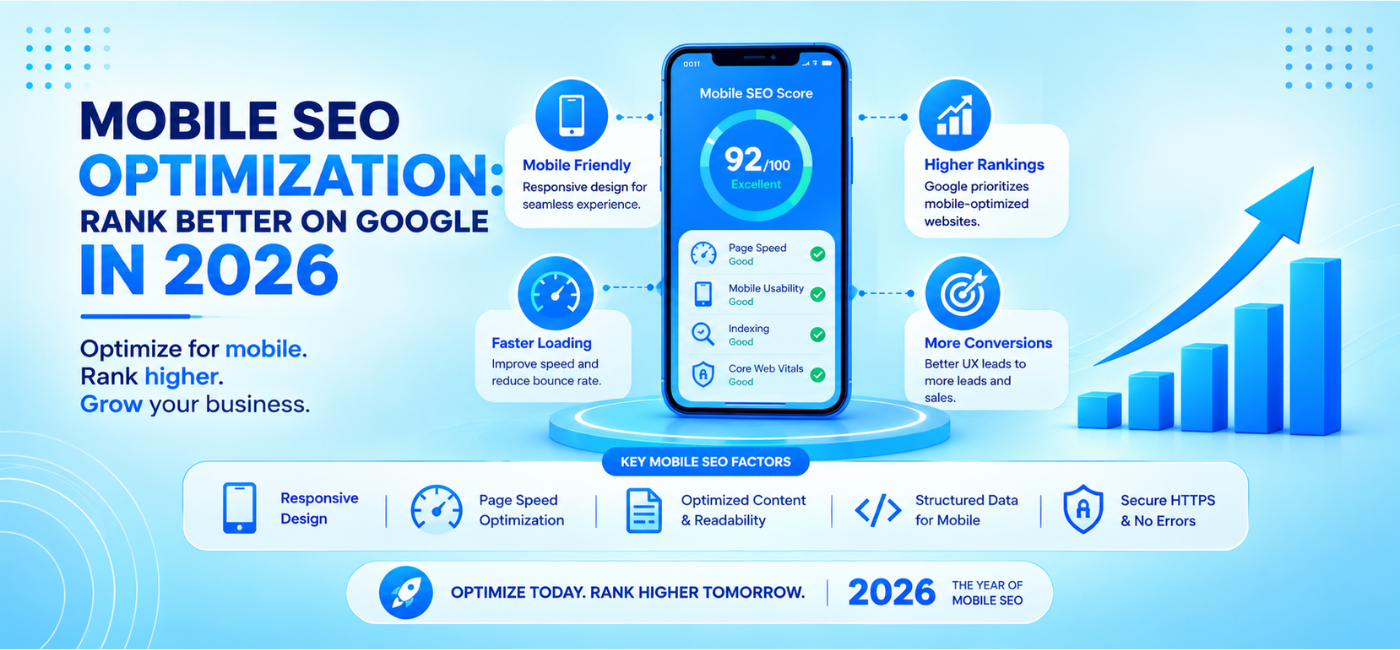
Use the mobile SEO optimization guide for a more detailed review of content and conversion paths.
13. Improve Performance Using Existing Capabilities
Before installing another optimization plugin, identify the bottleneck.
Review:
- Oversized images.
- Heavy page-builder sections.
- Unnecessary embeds.
- Excessive third-party scripts.
- Unused components.
- Hosting limitations.
- Existing cache settings.
Your host may already provide caching or delivery features. Check what is active before creating overlapping configurations.
Test before and after
Measure representative pages and record changes. Do not remove scripts blindly; they may power forms, payments, accessibility features, or essential measurement.
For a wider diagnosis, use the technical SEO audit checklist.
14. Check Canonical Tags and Broken URLs
WordPress core can output canonical links for singular queries, but you should still inspect the live result—especially on custom or heavily modified sites.
Check that an important page does not point its canonical at a staging domain or unrelated destination.
Also test links affected by deleted or renamed content.
Choose the appropriate action
- Correct a broken internal link.
- Redirect a moved page to its relevant replacement.
- Remove an obsolete reference.
- Return a genuine not-found response when no replacement exists.
Do not send every removed page to the homepage.
Complex archives, filters, and eCommerce variants may require specialist implementation rather than a global code snippet.
15. Add Structured Data Only Where Appropriate
Structured data can help Google understand eligible content and support certain search features. It does not guarantee enhanced presentation or better rankings.
Before adding markup, inspect what your theme and existing tools already output.
Avoid:
- Duplicate competing entities.
- Invented reviews.
- Incorrect business details.
- Product information inconsistent with the page.
- Markup for content visitors cannot see.
A developer can implement appropriate JSON-LD without another dashboard plugin. That still requires accurate data, testing, and maintenance.
16. Maintain, Measure, and Prioritize
Keep a simple record of what changed, when it changed, and why.
Review Search Console alongside business outcomes:
- Relevant search impressions.
- Clicks to priority pages.
- Qualified enquiries.
- Bookings or purchases.
- Indexing problems.
Google notes that changes can take anywhere from hours to months to be reflected, and not every change creates a noticeable search impact.
A practical maintenance routine
| Frequency | Suggested review |
| After major updates | Templates, forms, navigation, metadata, tracking |
| Monthly | Search performance, indexing, priority pages |
| Quarterly | Content usefulness, internal links, technical issues |
| Before a rebuild | URL preservation, redirects, staging controls |
Back up the website and test significant software or configuration changes before applying them to production.
Your Priority Order
Use this WordPress SEO checklist in a practical sequence:
- Resolve access and unintended indexing restrictions.
- Confirm that important pages work and can be understood.
- Improve content, titles, and navigation.
- Fix image and mobile usability problems.
- Investigate performance and duplicate signals.
- Measure relevant customer outcomes.
Installing more software should follow a demonstrated requirement—not precede the diagnosis.
Frequently Asked Questions
1. Can I improve WordPress visibility without an SEO plugin?
Yes. You can improve content, headings, internal links, image descriptions, site organization, and several settings without one. Advanced metadata or technical controls may need existing theme functionality or developer support.
2. Does WordPress include a sitemap?
Yes. Core provides XML sitemap functionality, commonly at /wp-sitemap.xml, although another component or configuration may replace or disable it.learn.
3. Should I remove my existing SEO plugin?
Not automatically. First check whether it supplies titles, descriptions, redirects, canonicals, structured data, or indexing rules that your website relies on.
4. Is the “Post name” permalink setting mandatory?
No. Descriptive URLs can be useful, but changing an established structure without migration planning can create unnecessary problems.
5. Can I use the excerpt as a meta description?
Only if your theme or another implementation outputs it that way. Verify the published HTML rather than assuming the fields are connected.
6. Will completing these checks guarantee first-page rankings?
No. Google explicitly says there are no changes that automatically guarantee a first-place ranking. Search visibility also depends on relevance, content, competition, and other signals.
7. When should I hire a specialist?
Consider support when important pages remain excluded, templates produce conflicting signals, a redesign is planned, or your team cannot implement and validate the required changes safely.
Conclusion
A well-optimized website does not need a new plugin for every task. Start with accessible pages, useful content, clear titles, sensible navigation, optimized images, and a mobile experience that works. Then address technical gaps using the capabilities already available.
Where something needs custom implementation, use a tested solution and document who will maintain it.
Need Help Improving Your WordPress Website?
Explore NP Creations AI SEO services and ask about a WordPress-specific review.
Share your website, main concerns, and business goals through the contact page. Request a proposal that separates simple editorial improvements from development work, explains existing-tool dependencies, and prioritizes fixes by impact.