


A slow page, delayed menu, or shifting layout can make a website feel unreliable—even when it looks good in a desktop browser.
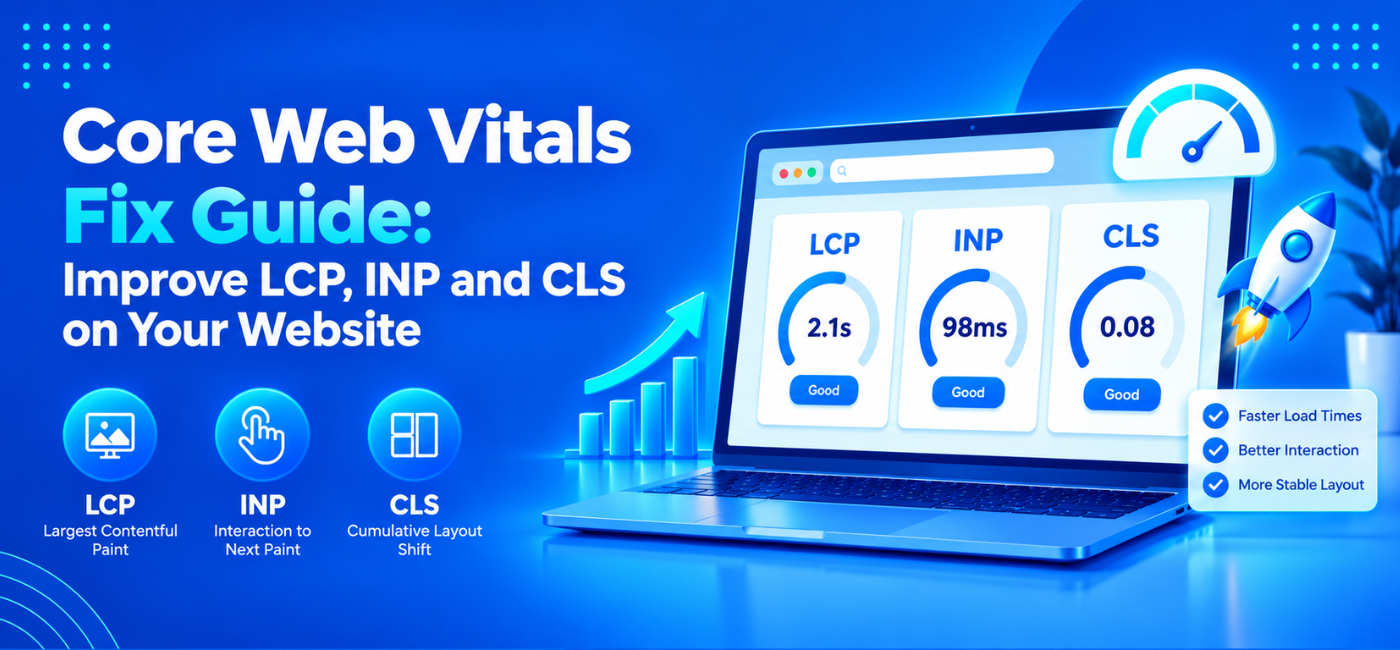
Core Web Vitals measure three practical aspects of that experience: how quickly the main content appears, how quickly the page responds to interaction, and how stable the layout remains. The current metrics are LCP, INP, and CLS.
If you are trying to understand how to fix Core Web Vitals, start with real-user data rather than chasing a single performance score. A fast-looking lab result does not prove that every visitor has the same experience.
Google recommends good thresholds of LCP at or below 2.5 seconds, INP at or below 200 milliseconds, and CLS at or below 0.1, assessed at the 75th percentile and segmented by device.
Table of Contents
- What Core Web Vitals measure
- Where to find the real problem
- Fix LCP: make main content appear sooner
- Fix INP: respond quickly to interactions
- Fix CLS: prevent unexpected movement
- Prioritize fixes by impact
- Test changes safely
- Common mistakes to avoid
- FAQs
- Conclusion and next step
What Core Web Vitals Measure
Core Web Vitals are not a single score. Each metric identifies a different user experience issue.
| Metric | What it measures | Good threshold |
| Largest Contentful Paint (LCP) | How quickly the largest visible content element appears | 2.5 seconds or less |
| Interaction to Next Paint (INP) | How quickly the page responds to clicks, taps, and keyboard interactions | 200 milliseconds or less |
| Cumulative Layout Shift (CLS) | How stable the page is while loading | 0.1 or less |
Google defines these as loading performance, interactivity, and visual stability.
A good result in one metric does not compensate for a poor result in another. A page can load quickly but still feel unresponsive when a visitor opens the menu, submits a form, or uses a product filter.
Where to Find the Real Problem
Begin with field data, which reflects actual visitor experiences. Then use lab tools to reproduce and diagnose the issue.
Start with the right pages
Do not begin by fixing every page. Focus on:
- Homepage.
- Main service or product pages.
- High-traffic landing pages.
- Checkout, booking, or enquiry pages.
- Templates with widespread performance problems.
Use both data sources
| Source | What it helps with | Limitation |
| CrUX field data | Real-user LCP, INP, and CLS trends | May be unavailable for low-traffic pages |
| PageSpeed Insights | Field data plus lab diagnostics | Lab results are simulated, not a substitute for field data |
| Lighthouse | Development testing and issue reproduction | Can differ from real-world conditions |
| Search Console | Core Web Vitals reporting | Identifies affected URL groups, not the exact cause |
web.dev notes that PageSpeed Insights shows all three Core Web Vitals along with supporting diagnostics such as TTFB and FCP.
Record a baseline
Before changing code, record:
- Metric values by device.
- Affected URLs.
- The LCP element.
- Relevant interaction paths.
- Third-party scripts.
- Template versions.
- Deployment dates.
This makes it easier to distinguish a real improvement from a temporary fluctuation.
Fix LCP: Make Main Content Appear Sooner
LCP measures how quickly the largest visible content element appears. It is often a hero image, a large heading, or a prominent video poster.
1. Identify the LCP element
Do not assume the hero image is always the LCP element. It can change during loading, so identify the final LCP candidate using appropriate diagnostics.
Check representative templates rather than only the homepage.
2. Make the LCP resource discoverable early
If the LCP element is an image, ensure its URL is present in the initial HTML response.
web.dev recommends using a standard image element with src or srcset, rather than relying on a JavaScript-based data-src approach that delays discovery.
3. Prioritize the LCP resource
For an important above-the-fold image, review whether it is unnecessarily lazy-loaded.
web.dev recommends removing loading=”lazy” from the LCP image and using fetchpriority=”high” where appropriate.
Do not apply these attributes to every image. They are targeted optimizations for the most important visual element.
4. Reduce render-blocking work
A browser may need to download and process CSS or JavaScript before it can discover or display important content.
Review:
- Render-blocking CSS.
- Fonts that delay text display.
- JavaScript needed before the main content appears.
- Large inline styles.
- Unnecessary third-party scripts.
5. Improve server response and delivery
Time to First Byte (TTFB) affects when the browser can begin loading page resources.
web.dev recommends using a CDN and appropriate caching to reduce TTFB and serve content closer to users.
Example: A slow service page
A service page may have a large hero image loaded through JavaScript, a heavy chat widget, and a font that blocks rendering.
A practical sequence could be:
- Identify the hero image as the LCP element.
- Serve it directly in the HTML.
- Remove unnecessary lazy loading from that specific image.
- Defer the chat widget.
- Re-test the template on mobile and desktop.
This is more useful than installing a generic speed plugin and hoping the score improves.
Fix INP: Respond Quickly to Interactions
INP measures how responsive a page is to user input, including clicks, taps, and keyboard interactions.
A page can look fast when it loads but feel slow when a visitor opens a menu, applies a filter, opens a modal, or submits a form.
1. Test real interactions
Use real devices and test common paths:
- Opening navigation.
- Expanding an accordion.
- Applying a product filter.
- Submitting an enquiry form.
- Adding a product to a cart.
- Opening a booking calendar.
- Using a chat widget.
Do not test only page load. INP is about what happens after the visitor acts.
2. Break up long tasks
A long task can block the main thread and delay the next visual response. web.dev identifies tasks longer than 50 milliseconds as long tasks and recommends breaking them up so interactions can be handled sooner.
Developers can review long tasks and JavaScript execution during initial loading. web.dev notes that Lighthouse’s total blocking time audits can help identify JavaScript processing that may affect INP.
3. Reduce unnecessary JavaScript
Review scripts that load on every page but are not needed for the initial experience.
Common examples include:
- Chat and support widgets.
- Marketing tags.
- Heatmaps.
- Video players.
- Social embeds.
- A/B testing tools.
- Large UI libraries.
web.dev recommends reviewing tag-manager tags and removing unused code, as well as using code splitting for JavaScript not required during the initial render.
4. Avoid large rendering updates
Large DOM updates and layout recalculations can make interactions feel slow.
web.dev recommends avoiding unnecessary JavaScript, reducing large rendering updates, and keeping the DOM size manageable.
5. Do not remove functionality blindly
A script may support payments, accessibility, analytics, or a business-critical workflow.
Document each script’s purpose, owner, and impact before removing it. Then validate forms, checkout, and tracking after any change.
Fix CLS: Prevent Unexpected Movement
CLS measures unexpected layout changes while the page loads. A stable layout helps users avoid tapping the wrong button or losing their place while reading.
1. Reserve space for images
Set the image’s width and height attributes, or use equivalent CSS sizing.
web.dev identifies unsized images as a major source of layout shifts and recommends explicit dimensions or the CSS aspect-ratio property.
2. Reserve space for embeds and ads
Videos, maps, banners, and advertising units often load after the page begins rendering.
Reserve a sensible area for them rather than allowing content to move once they arrive.
3. Use stable font loading
Fonts can change text dimensions after loading, causing headings, buttons, and navigation to shift.
Use appropriate font-display behaviour and reserve space where a font swap is likely to affect the layout.
4. Review banners and animations
Cookie banners, notification bars, and promotional messages can push content downward when they appear.
web.dev recommends avoiding layout-inducing animations and preferring CSS transform where suitable.
5. Test mobile templates
A layout can remain stable on desktop but shift on a smaller screen.
Test the homepage, service pages, product pages, and conversion pages on real phones. web.dev recommends testing on at least one mobile and one desktop device, ideally including a low-specification mobile device.
Prioritize Fixes by Impact
Not every performance finding deserves the same attention.
| Priority | Example | Why it matters |
| Critical | Important conversion pages fail or become unusable | Affects revenue and customer trust |
| High | Poor LCP or INP on a high-traffic template | Affects many visitors |
| High | Layout shifts on checkout or forms | Can cause incorrect actions or abandoned journeys |
| Medium | Poor metrics on low-traffic pages | Useful, but lower business impact |
| Low | Minor image compression opportunities | Worth doing, but not urgent |
Focus first on pages that affect leads, sales, support requests, or customer trust.
For a broader review of crawlability, indexing, mobile usability, and performance, use NP Creations technical SEO audit checklist.
Test Changes Safely
Performance changes can have unintended effects.
Use a controlled testing process
- Record the baseline for affected templates.
- Make one meaningful change at a time where practical.
- Test on real mobile and desktop devices.
- Verify forms, checkout, menus, and tracking.
- Review field data after sufficient traffic.
- Document the result.
Do not rely only on a score
A high Lighthouse score does not guarantee a good real-world experience. Use lab tests to diagnose issues, but validate the outcome with field data.
web.dev recommends using field data where possible, since Core Web Vitals are intended to reflect real user experience.
Common Mistakes to Avoid
- Treating a performance score as the only goal.
- Lazy-loading the LCP image.
- Removing scripts without checking their business purpose.
- Applying preload or priority attributes to every asset.
- Fixing CLS by hiding content instead of reserving appropriate space.
- Testing only on a fast desktop connection.
- Making many changes at once without a measurement plan.
- Assuming performance improvements guarantee higher rankings.
FAQs
1. How do I fix Core Web Vitals on my website?
Start with field data, identify affected templates, diagnose the LCP element and interaction paths, then improve resource loading, JavaScript execution, and layout stability.
2. Do Core Web Vitals directly improve Google rankings?
Core Web Vitals are part of Google’s broader page-experience considerations. They are useful user-experience signals, but improving them does not guarantee a particular ranking position.
3. Why is my LCP poor even though my page loads quickly?
The LCP element may be delayed by JavaScript, fonts, render-blocking resources, server response, or an image that is not discoverable early in the HTML.
4. What causes a poor INP score?
Long JavaScript tasks, heavy rendering work, excessive third-party scripts, and large DOM updates can delay the page’s response to clicks, taps, or keyboard actions.
5. What causes layout shifts?
Unsized images, late-loading ads or embeds, font changes, and banners that push content down are common causes. Reserving space for known content is usually more effective than hiding it.
6. Should I remove every third-party script?
No. Review each script’s purpose, owner, and effect. Remove or defer scripts that add little value, but preserve tools needed for payments, accessibility, analytics, or core business functions.
7. When should I involve a developer?
Involve a developer when the issue involves JavaScript, server configuration, CDN rules, checkout flows, custom templates, or repeated changes that do not resolve the underlying problem.
Conclusion
Improving Core Web Vitals is about making the website feel dependable, not simply achieving a higher score.
Start by identifying real-user problems. Then improve the LCP element, reduce delays in interaction responses, and prevent layout movement.
Prioritize high-traffic and revenue-critical templates, test changes on real devices, and measure the result against a documented baseline.
Get a Performance-Focused Review
If performance issues are affecting enquiries, sales, or user trust, explore NP Creations AI SEO services.
Share your website, affected pages, and business goals through the contact page. Ask for a review that identifies affected templates, separates quick fixes from development work, and explains how improvements will be validated.